
Text Editor
Free online text and code editor

Select a version to preview it in the editor. Closing brings your current text back.
Your document text stays on this device. Check important details against the original.
Generate a detailed summary using Google Chrome on your computer. A download may be required.
Paste a direct public HTTPS link to a text file (like https://example.com/notes.txt), up to 10 MB. The file opens in a new tab. Sign-in and redirecting links are not supported yet.
Enter a web address (https://...) or a heading link (#...).
Choose what to restore. This never changes your document text, drafts, or recent files.
Recovery drafts are unsaved copies kept on this device. Restore one to open it, or delete drafts you no longer need.
No recovery drafts are saved on this device.
Choose which button groups to show on the toolbar.
Inches, from 0 to 3 per side
Header/footer need at least 0.4" top and bottom margins
Jump to a line like 42, or a line and column like 42:7.


Text Editor is a free app for creating, opening, and editing text, Markdown (MD), and code files on your computer and in Google Drive.
Open a .md file to edit Markdown source or, on a computer or tablet, work directly in the formatted document. Save your changes to your computer or Google Drive.
To get started, open a file or create a new text file with one of the buttons below.
You're here because you opened a Gmail attachment with Text Editor. Text Editor will open it so you can read and edit it, then save a copy to Google Drive or your computer.
To continue, authorize Text Editor with the button below.
You're here to open a file from Google Drive with Text Editor. Text Editor will open it for editing if you have permission, or for viewing if not.
To continue, authorize Text Editor with the button below.
You've chosen to create a new text file with Text Editor. Please wait while the application loads.
The quickest way to learn Text Editor is to open a file and look around. This section walks through the main surfaces of the editor and where its features live.
Create and edit Markdown (.md) files for notes, READMEs, and documentation. Use Text view to edit the Markdown source, Split to see source and formatted content side by side, or Markdown view to focus on the formatted document. On a computer or tablet, you can type directly in the formatted text and use toolbar buttons for bold, italic, headings, lists, and links. Your document stays a Markdown file when you save it to your computer or Google Drive. Learn more in the Markdown editing guide.
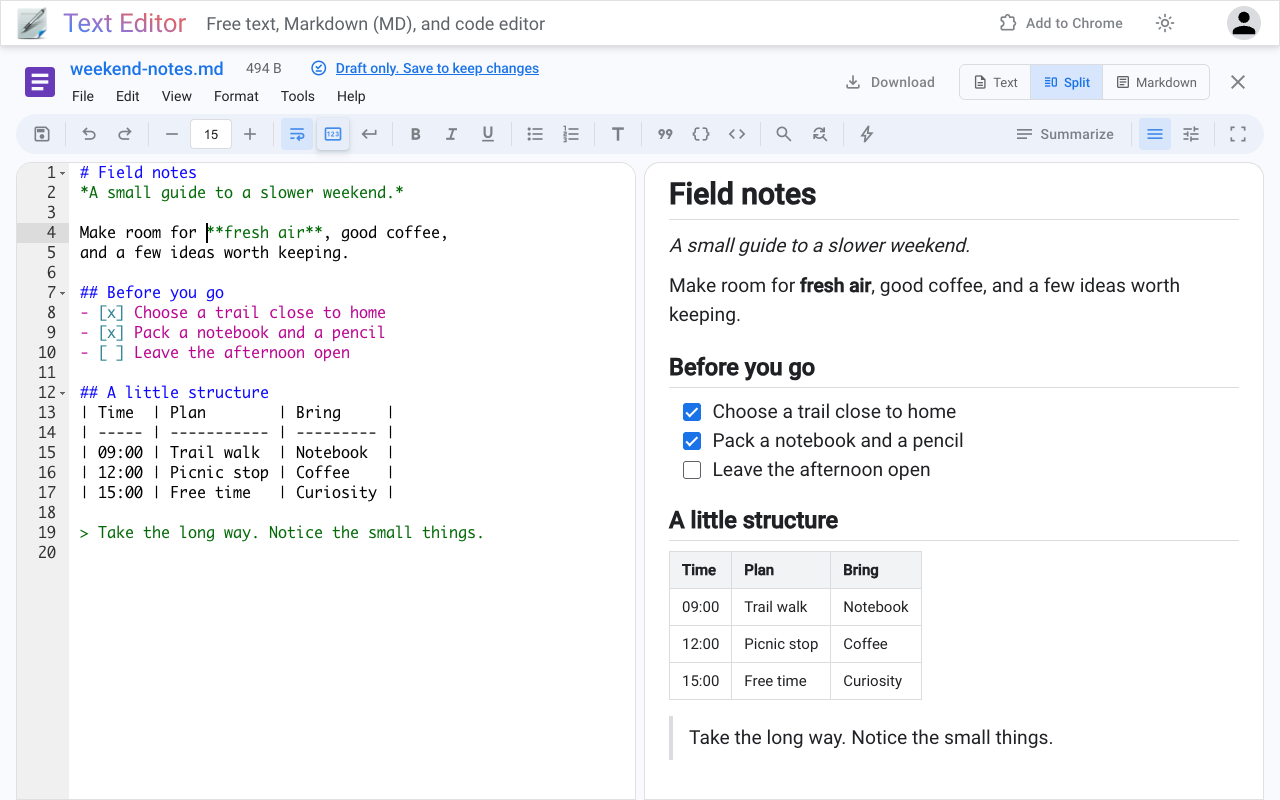
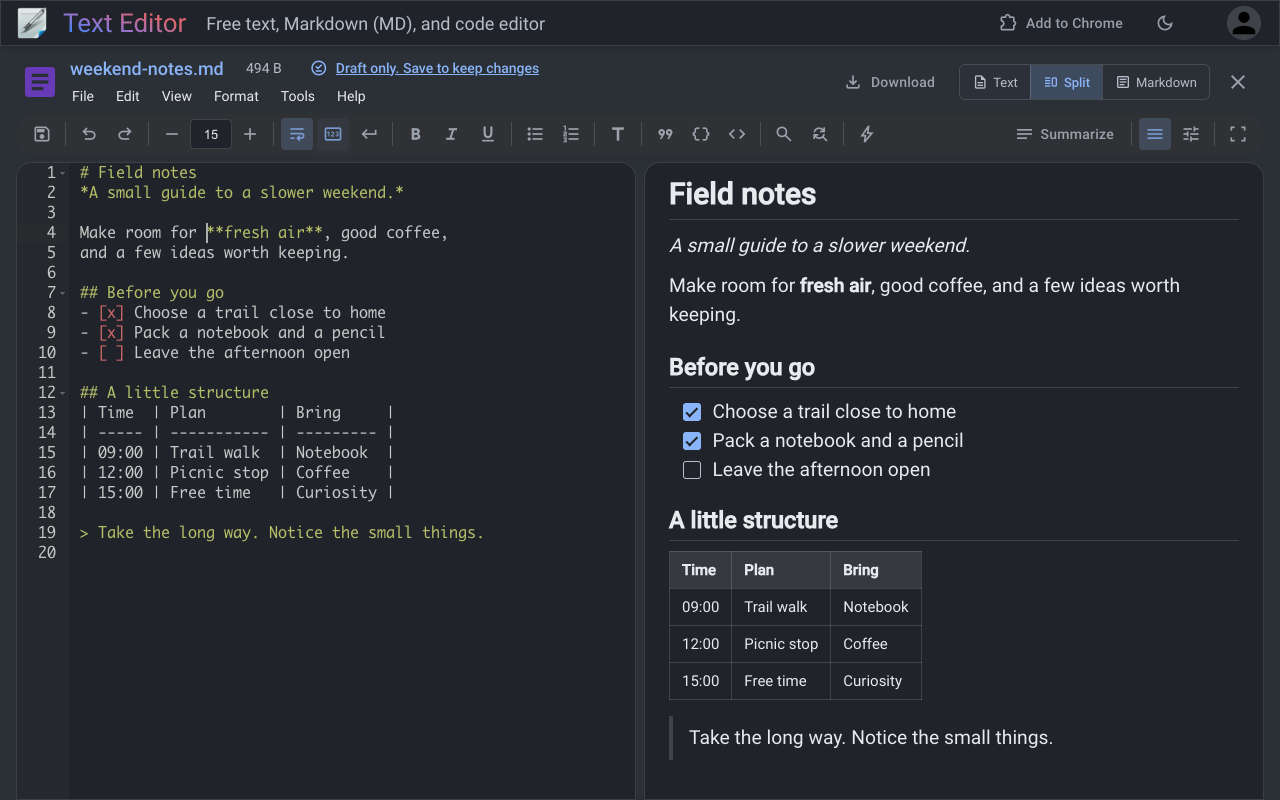
The toolbar above the editor covers the actions you reach for most often. It holds Save, Undo and Redo, a font size stepper, toggles for word wrap, line numbers, invisible characters like tabs and line endings, indent guides, and the indenting of wrapped lines, and code tools for commenting out lines, indenting and outdenting, and reformatting the document. When you edit Markdown, formatting buttons for bold, italic, underline, lists, headings, quotes, and code take the place of the code tools. Find, find and replace, and the command palette come next, and the buttons at the far right hide the menu bar, customize the toolbar, and switch to full screen. If a button you never use is in your way, Customize toolbar lets you choose exactly which ones appear.
The menu bar above it holds the complete command set in the File, Edit, View, Format, Tools, and Help menus, laid out the way you know from apps like Google Docs. The Tools menu is where the less frequent things live: a word count, the text encoding chooser, keyboard settings, autocomplete, syntax checking, and a Manage drafts dialog for the recovery drafts kept in your browser, along with Restore defaults for when you would like everything back the way it was. If you prefer the keyboard, the command palette runs any command by name, and Help > Keyboard shortcuts lists every shortcut. See also the keyboard shortcut FAQ.
For supported formats, Text Editor offers three views, from the View menu or the selector at the top right of the editor. Edit shows just the editor. Split shows the editor and a live preview side by side: the preview updates as you type, and with Keep preview in sync turned on it scrolls in step with the editor. Preview shows only the rendered result, which is ideal for reading. For Markdown files, the views are named Text, Split, and Markdown, and on a computer or tablet you can edit the formatted document directly in Split and in the Markdown view. Text Editor previews Markdown, HTML (inside a security sandbox), CSV/TSV, XML, JSON, SVG, LaTeX, and RTF, and offers a clean reading view for plain text. The CSV preview is a real table: click a column header or a row number to select it, then copy it out ready to paste into a spreadsheet. For writing without distractions, full screen mode hides the surrounding app controls. Learn more in the preview FAQ.
Text Editor saves the way a desktop editor does. When you save, your changes are written back to wherever the file lives: in place on your computer in Chromium browsers, or back to Google Drive in any supported browser. The File menu shows the commands that fit the current file, from Save as and Make a copy to Edit in Google Drive and Edit locally, which move a file's home between your computer and Drive. Download a copy hands you a copy without changing where the file lives, and Save as PDF turns the document into a PDF by way of your browser's print dialog.
Autosave is on by default: once a document has a writable home, edits flush to it automatically, and the save status in the app bar shows when everything is saved. You can switch it off for one document or for all new files under File > Autosave, and File > Save new files to decides whether a brand new document goes to Google Drive or to your computer the first time you save it. Recovery drafts stored in your browser guard unsaved work against a closed tab or a crash. See autosave and recovery in the help center.
Files that live in Google Drive get a Google Drive submenu in the File menu with Make a copy, Move, Open, Locate, and Version history, and a Share command right beside it. You can also install Text Editor in Google Drive so it appears in Drive's Open with menu. More in the Drive FAQ.
The theme chooser in the View menu previews themes live as you move through the list: nine light themes including TextMate, GitHub Light, and Solarized Light, and nine dark themes including Tomorrow Night, Monokai, Dracula, and Nord. Editor fonts include Roboto Mono, JetBrains Mono, and Fira Code alongside your system monospace fonts, with an adjustable size. And if your fingers already know another editor, Keyboard settings in the Tools menu switches the entire keymap to Vim, Emacs, Sublime, or VS Code bindings. Tabs or spaces, indent width, auto-indent, and automatic bracket closing all live in the Format menu. See themes and keyboard modes in the FAQ.
File > Print opens a print dialog with a preview of the result. Document text prints with options like margins and line numbers, and Markdown, CSV/TSV, XML, JSON, SVG, LaTeX, RTF, and plain text documents can print their rendered preview instead, so what you send to the printer matches what you see on screen. HTML files print as document text. If you want a file rather than paper, File > Save as PDF sends the same output straight to your browser's print dialog, where you choose the PDF destination. Details in the printing help.
Plain text is the simplest way a computer can store writing: a file that contains characters and nothing else. There are no fonts, no colors, and no hidden layout data. That simplicity is why plain text has outlasted decades of file formats. It is small, fast, readable on any device, easy to compare and back up, and it will still open long after today's software is gone. A text editor is any program built for working with these files.
The earliest editors worked one line at a time, because early terminals printed onto paper and there was no screen to redraw. Video terminals made full-screen editing possible, and two of the most influential editors of that era, vi and Emacs, appeared in the 1970s and are still in daily use today. Graphical desktops later put a simple editor on every computer. Windows Notepad has been quietly opening files since the 1980s. The newest chapter moves the editor into the browser, where there is nothing to install and your editor is wherever you are.
A text editor differs from a word processor in one essential way: a word processor embeds formatting into its files, while a text editor stores exactly the characters you type. That is why code, configuration, and data files are almost always edited as plain text.
Many everyday formats are plain text underneath. Notes and READMEs are usually TXT or Markdown. Tabular data travels as CSV, a format so simple it has survived since the 1970s. Structured data and configuration use JSON, XML, or YAML. Web pages are HTML and CSS. Source code for programs written in Python, JavaScript, Java, C++, and hundreds of other languages is plain text, which editors display with syntax highlighting to make its structure easy to scan. Text Editor recognizes all of these, highlights them, and previews several of them.
A text file is ultimately just bytes, and a character encoding is the rulebook that turns those bytes into letters. For decades the dominant rulebook was ASCII, which covers 128 characters, enough for English and little else. Today's standard is Unicode, which assigns a number to more than 150,000 characters across the world's writing systems, most often stored as UTF-8. When a file was written with a different rulebook, its accents and symbols can appear garbled. Text Editor detects the encoding automatically and lets you reopen a file with another one from the Tools menu. See the text encoding help.
Markdown was created by John Gruber in 2004 with a simple goal: a way to write formatted documents in plain text that reads naturally even before it is rendered. Asterisks make emphasis, pound signs make headings, and dashes make lists. It became the everyday language of READMEs, documentation, and discussion forums, was standardized as CommonMark, and grew popular extensions like GitHub Flavored Markdown for tables and task lists. Text Editor gives Markdown special attention: formatting buttons on the toolbar, lists and headings from the Format menu, and a Markdown view where you can edit the formatted document directly on a computer or tablet, with the source one click away in Text view. Open a .md file and try it.
LaTeX has been the standard way to write papers, theses, and books in mathematics, physics, computer science, and beyond since the 1980s. A LaTeX document is plain text: short commands describe the structure and the formulas, and the typesetting is left to the machine. Text Editor opens .tex files with syntax highlighting and renders a preview of the document as you write, with sections, lists, tables, footnotes, citations, and math equations typeset by KaTeX.
A few quick answers from the FAQ:
For anything else, browse the FAQ and the help center, or write to us at info@texteditor.co.
Text editors have a history nearly as old as computing itself, and an enormous family tree, from the line editors of the teletype era to the programmable environments many developers live in today. Wikipedia maintains both a list of text editors and a detailed comparison of text editors if you would like to see how deep the topic goes.
However you write, whether notes, code, data, or documentation, we hope Text Editor makes it a little easier.
We're sorry - Text Editor was unable to load.
Please see the troubleshooting options below.
Still not working?
If none of these steps resolve the issue, please email support@texteditor.co with the error message below so we can assist you directly.